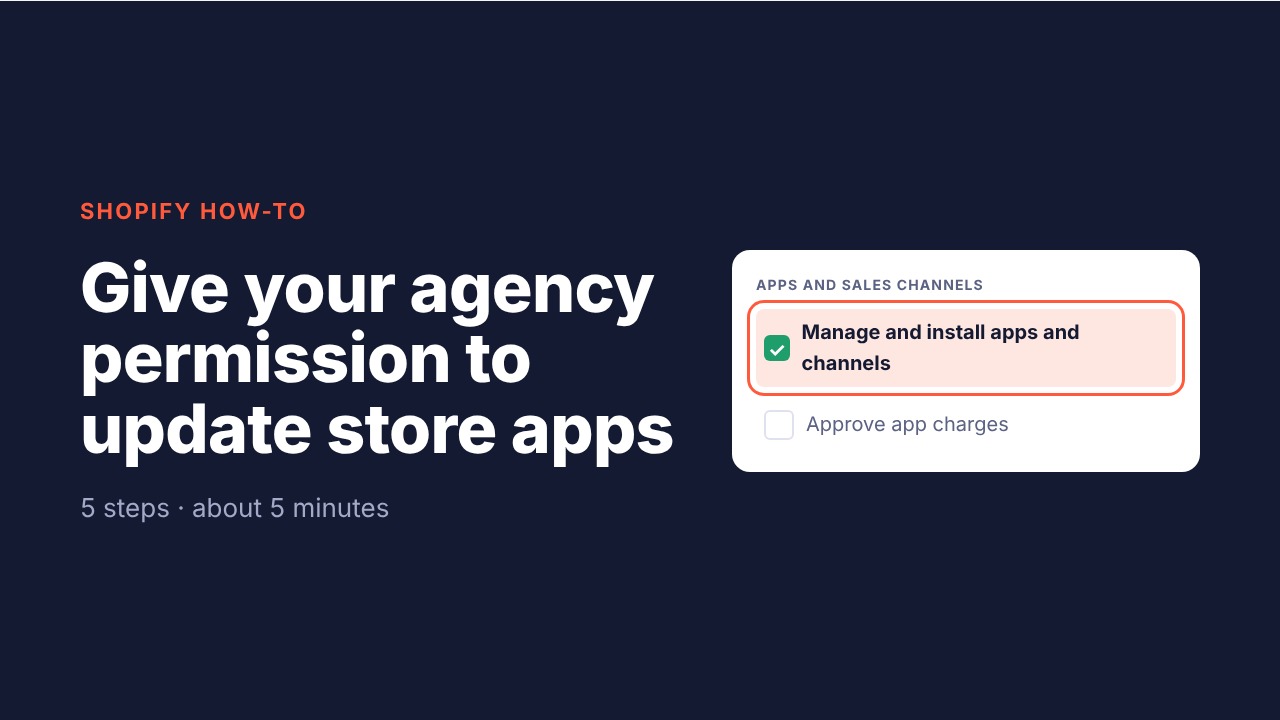
How to Give Your Agency Permission to Update Your Shopify Apps
Shopify apps update their permissions from time to time. When that happens, only the store owner, or someone the owner has given permission to, can approve the update. If your agency's collaborator account doesn't have that permission, you'll get a request to approve it yourself every time.
Follow the 5 steps below to fix that once. Look for the orange box on each picture. That's what you click.
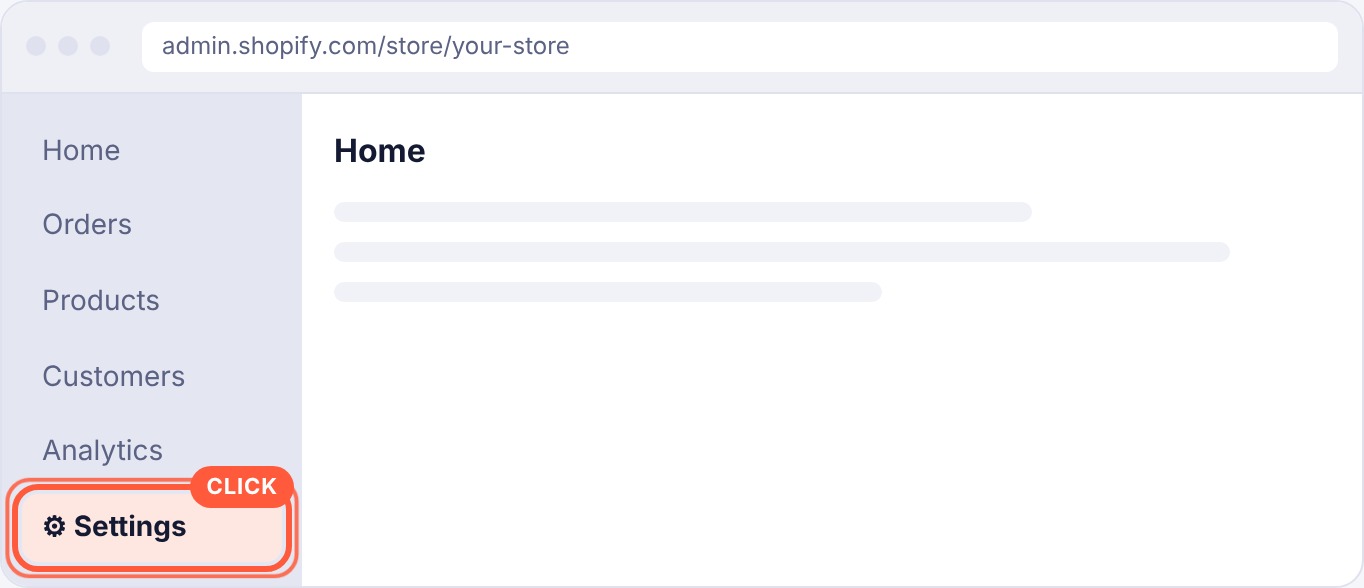
Step 1: Open Settings
Log in to your Shopify admin. In the menu on the left, click Settings at the very bottom.
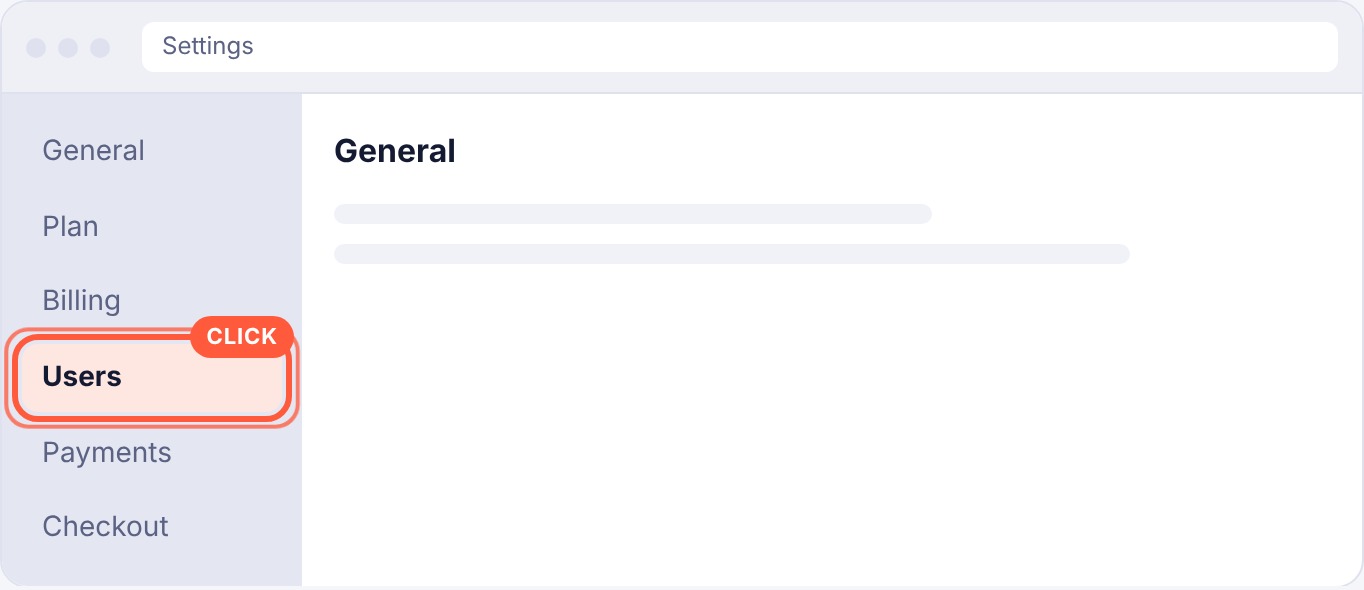
Step 2: Open Users
A new menu appears. Click Users. On some stores this says Users and permissions.
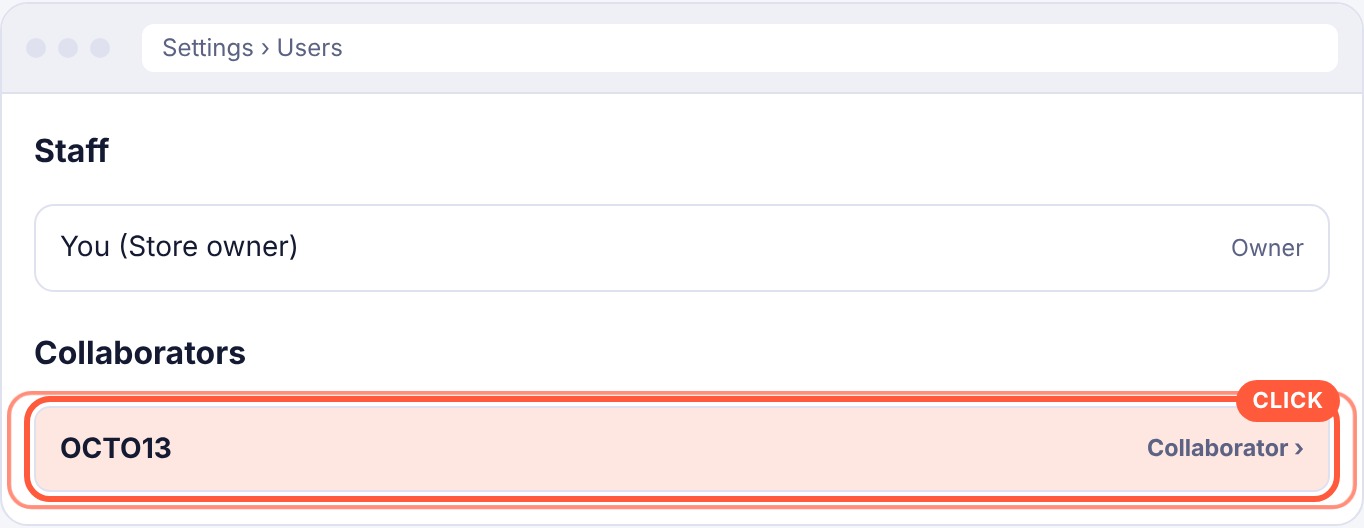
Step 3: Find your agency under Collaborators
Scroll down past your staff list to the Collaborators section and click your agency's name.
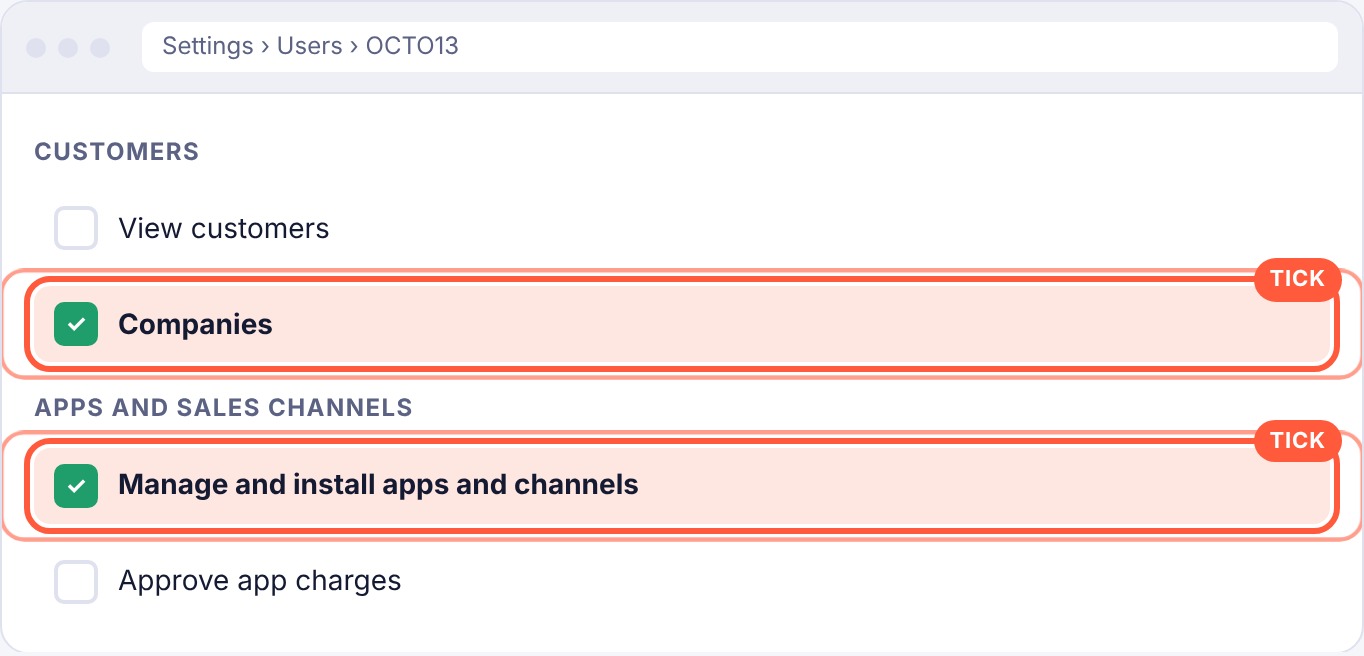
Step 4: Tick these 2 boxes
Turn on Manage and install apps and channels and Companies. Leave everything else as it is. Companies may show under Customers or B2B depending on your plan. If you don't see it, skip it. The apps box is the important one.
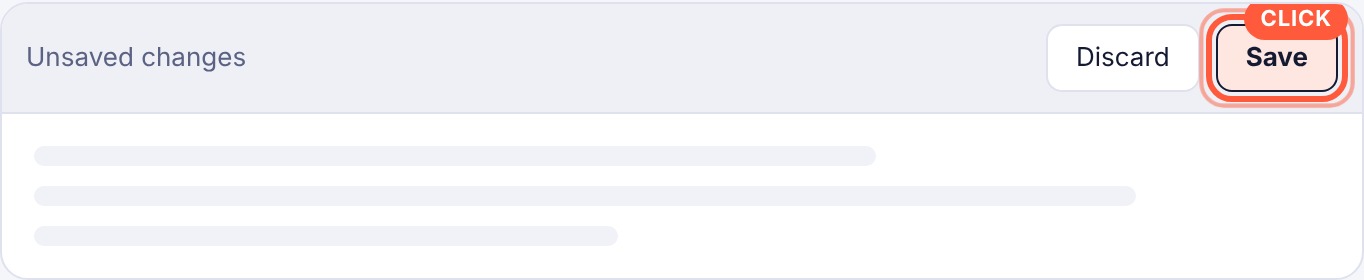
Step 5: Click Save
A bar appears at the top of the screen. Click Save. That's it.
Questions? Reach out to the OCTO13 team and we'll walk you through it.